How to Extract Data from GST Invoices in Bulk
Stop copying GSTIN, amounts, and taxes by hand. Extract data from multiple PDF invoices into one Excel file — automatically.
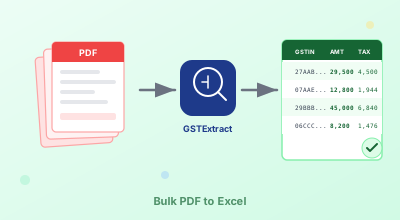
Every month, somebody in your office is doing the same exhausting thing. Opening one PDF invoice. Squinting at the GSTIN. Copying it into a row in Excel. Tabbing across to the next column. Typing the invoice number. Then the date. Then the taxable value. Then CGST. Then SGST. Save. Close. Open the next one. Repeat for the next ninety-six bills.
If you've ever sat through an afternoon of this, you know exactly how it ends. Somewhere around bill number forty, your eyes glaze over and a 5 turns into an S in a GSTIN. You don't notice. Three weeks later GSTR-2B reconciliation throws a "no matching invoice" flag, and now you're going back through a folder of PDFs at 9 PM trying to figure out which one was the offender. Fun stuff.
The real cost isn't just the hours. It's the small, slow drag those hours put on everything else. So this post is really about one question: at what point is it actually worth letting a tool do this part for you, and what should you expect when you do?
What's Actually Sitting Inside a GST Invoice PDF
Before talking about how to pull data out, it helps to remember what's in there in the first place. Rule 46 of the CGST Rules forces every supplier to print roughly the same set of fields on every tax invoice. That standardisation is what makes automated extraction work at all. If invoices were free-form, none of this would be possible.
For bookkeeping and return filing, the fields that earn their keep are: the supplier's name, their GSTIN, the invoice serial number, the invoice date, the total payable amount, and the tax breakup (CGST and SGST for an intra-state sale, IGST for inter-state). Everything else on the bill — buyer address, HSN tables, terms and conditions, signature blocks — is useful for context but not strictly needed for the row in your spreadsheet.
If any of those terms feel hazy, our field-by-field walk-through covers what each one means.
Why the Old Way Stops Working
Almost every small business does the same thing for as long as it can get away with it. Open the PDF, read the fields, copy them into Excel or straight into Tally, save, move on. And honestly, that approach works perfectly fine when the monthly stack is small. Five invoices? Ten? Don't waste your time hunting for software, just get on with it.
The trouble is the way the workload scales. At fifty bills a month, this kind of work starts costing you a full afternoon. At a hundred and fifty, it becomes the single slowest part of your monthly close. And the errors don't just appear out of nowhere — they show up because human attention is a finite resource. Nobody types a hundred GSTINs in a row without slipping at least once.
The mistakes you'll see most often are pretty boring. A wrong character in a GSTIN that fails to match in GSTR-2B. CGST and SGST values accidentally swapped because they're usually the same number anyway. An invoice dated 30 March that gets booked into April. And occasionally an invoice that just gets skipped because it was buried in a long PDF list and nobody noticed. None of these are catastrophic on their own, but they add up to a few hours of cleanup every quarter.
What's Actually Going On Under the Hood
People sometimes think of automated extraction as some kind of black-box magic. It really isn't. Most digital PDF invoices already have the text sitting inside them as actual characters, not as a picture, and that's the only reason any of this works at all. Scanned bills are a different story (more on that in a minute).
When you upload a batch to GSTExtract, four things happen in sequence. The tool first pulls the raw text out of the PDF, layout and all. Then it walks through that text using regex patterns and keyword anchors to find the bits that look like GSTINs, invoice numbers, dates, amounts and tax lines. Once it has candidates, it runs them through validation — the GSTIN checksum, the CGST-equals-SGST rule, the math on totals — and assigns a confidence score to each field. Finally it stitches everything into a single Excel sheet, one row per invoice.
The validation step is the part most people skip when they imagine "AI invoice tools," and it's actually the most important. Confidence scoring is what tells you which rows need a human eye, instead of pretending every row is perfect.
What You Get in the Output
The extracted Excel file contains one row per invoice with these columns:
| Column | What It Contains | How to Use It |
|---|---|---|
| File | Original PDF filename | Trace back to the source document if something needs review |
| Vendor | Supplier/seller name | Match to your vendor master list |
| GSTIN | Supplier's GST number | Verify against GSTIN validator — checksum errors flagged automatically |
| Invoice # | Unique invoice identifier | Use for GSTR-2B reconciliation and duplicate detection |
| Date | Invoice date (YYYY-MM-DD) | Assign to the correct return period |
| Total | Total payable amount | Cross-check with your payment records |
| CGST / SGST | Central + State GST amounts | Verify: CGST should equal SGST for same-rate items |
| IGST | Integrated GST amount | Should appear only for inter-state transactions |
| Status | OK, Review, or Error | Review-flagged rows need manual verification before filing |
Anything flagged for review gets sorted to the top of the spreadsheet. The idea is simple: look at the top rows first, leave the rest alone.
Trying It On a Stack of Twenty Bills
If you've never used the tool, the easiest way to see what it does is just to throw a real batch at it. Head over to the Invoice Reader, hit Choose Files, and pick several PDFs from your supplier folder. The processing itself takes a few seconds — it really is that quick for digital PDFs.
Once it's done, you'll see a results table where each field has a small confidence dot next to it. Green means the tool was sure, amber means it found something but you should double-check, and red means it couldn't pin the value down. Look at the amber and red rows on screen, then download the consolidated Excel file. That's the entire workflow. No signup, no installer, nothing to configure. It's free to try.
When You Actually Need to Look Twice
I want to be honest about something. No extraction tool is right a hundred percent of the time, and any vendor that tells you otherwise is selling you something. The point isn't to never review anything. The point is to spend your review time on the rows that actually need it, instead of on every single bill.
Here are the situations worth a closer look. An amber dot means the tool found a value but isn't fully sure about it — usually because the invoice layout is unusual, or the keyword it normally anchors on is missing. A "Review" status on the row means at least one of the three critical fields (GSTIN, invoice number, total) came back with low confidence. A zero in the tax column is worth checking, because sometimes it's a genuinely exempt supply and sometimes it just means the tax line was hiding in a borderless table. And finally, a missing vendor name almost always means the seller's name got buried in some non-standard corner of the bill.
The workflow most of our users settle on is the same: extract everything in one batch, scan only the flagged rows, then push the clean data straight into Tally or Excel. It's not glamorous, but it gets a half-day's work down to about ten minutes.
What Kind of Invoices Does This Actually Work On?
The short answer is: anything that's been generated by a computer. That covers more bills than you'd think. The Amazon, Flipkart and Myntra invoices that pile up in your email. Swiggy and Zomato bills from team lunches. Travel receipts from BookMyShow, RedBus and MakeMyTrip. Cloud subscriptions from Cloudflare, AWS and Google Cloud. And every invoice spat out by Tally, Zoho Books, Busy, Vyapar, or any other billing software your suppliers might be running.
Where the web tool draws the line is at scanned bills and photographs of invoices. Those need OCR — proper image-to-text recognition — and that's a separate path. If a supplier is sending you mobile-camera shots of paper bills, gently push back and ask for a digital PDF instead. Your future self will thank you.
Related Tools
- How to Read a GST Invoice — understand what each field means
- CGST vs SGST vs IGST on Your Invoice — the five-second test for the right tax type
- GST 2.0 on Your Invoice — the 22 September 2025 rate cutover, explained with side-by-side bills
- The GST QR Code on Your Invoice — what the QR encodes and how a 30-second scan catches fake invoices
- GSTIN Validator — verify any GST number's format and checksum
- GST Calculator — calculate CGST, SGST, IGST for any amount
- GST State Code List — searchable list of all 38 codes, with a free Excel download
- Place of Supply Under GST — the rules that decide intra-state vs inter-state on every invoice
- HSN Code Lookup — once the HSN is extracted, here is how to confirm the right code and avoid the digit-count trap
Ready to Stop Manual Data Entry?
Upload up to 20 GST invoice PDFs and get all fields extracted to one Excel file in seconds.
Convert to ExcelFrequently Asked Questions
What data can be extracted from a GST invoice PDF?
The fields that matter for bookkeeping: vendor name, GSTIN, invoice serial number, invoice date, total payable amount, and the tax breakup (CGST and SGST for intra-state bills, or IGST for inter-state). Because Rule 46 forces every supplier to print these in roughly the same way, automated extraction is reliable on most digital PDFs, including the ones you get from Amazon, Flipkart, Swiggy and the rest of the usual suspects.
How many invoices can I process at once?
Several PDFs per batch on the web tool. Everything goes into a single Excel sheet with one row per bill, and the rows that need a closer look are sorted to the top so you don't have to scroll for them.
Does bulk extraction work with scanned invoices?
Not on the web tool, no. The browser version is built for digital PDFs — the kind generated by billing software and sent over email. Scanned bills and mobile-camera photos need OCR, which is a slower and messier process. If you're stuck with scans, the command-line version of GSTExtract handles them, but for everything else the web tool is faster.
Is my invoice data stored or shared?
Shared — never. Stored — never either: we don't keep your invoices. Your file is processed and then discarded the moment extraction finishes. The Excel file we generate is auto-deleted about an hour after it's created.